You have verified your account. You have your camera ready. Now comes the scary part: Pushing the "Start Broadcast" button.
Many new models make a critical mistake: they use the default "Web Browser Broadcaster." Don't do this. It limits your quality, makes your lighting look bad, and doesn't allow for professional overlays.
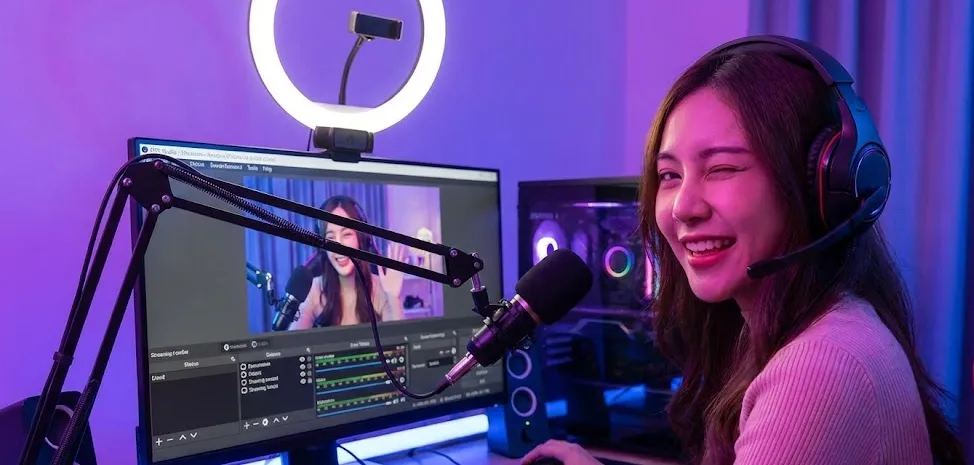
To rank on the front page, you need a crisp, high-definition stream. This guide will show you how to set up OBS Studio (Open Broadcaster Software) to stream on Chaturbate like a professional.
1. What is OBS Studio and why do you need it?
OBS (Open Broadcaster Software) is a completely free, open-source program that acts as a "TV Control Room" for your computer. It takes the video from your webcam, mixes it with your microphone, adds graphics (overlays), and sends the final signal to Chaturbate.
The Problem with Browser Streaming
When you click "Broadcast" directly in Chrome or Safari, you are using a basic technology called WebRTC. It has serious limitations:
- Unstable Connection: It relies heavily on your browser's performance. If Chrome freezes, your show dies.
- No "Privacy" Screen: If you need to change clothes or use the bathroom, you can't easily switch to a "Be Right Back" screen.
- Boring Visuals: You cannot add your tip goal bar, music, or alerts when someone tips.
Why OBS is the Solution
OBS solves all these problems. It encodes the video on your PC before sending it out. This means smoother quality, professional lighting correction, and the ability to create "Scenes" (like a Closeup Scene, a Full Body Scene, and a generic Waiting Scene).
📥 How to Install OBS Studio
1. Go to the official website: obsproject.com (It is 100% Free).
2. Download the version for your OS (Windows, macOS, or Linux).
3. Install it like any other program.
Note: When you open it for the first time, it might ask to run an "Auto-Configuration Wizard". You can skip this; we will configure the manual settings below for the best Chaturbate performance.
2. Step-by-Step: Connecting Chaturbate to OBS
- URL (Server): Usually starts with rtmp://...
- Stream Key: A long password like user_12345_auth... (Do not share this with anyone!)
- Service: Custom...
- Server: Paste the URL from Chaturbate.
- Stream Key: Paste the Key from Chaturbate.
3. The Perfect 2026 Settings (Copy These!)
This is where most models fail. If your bitrate is too low, you look pixelated. If it's too high, viewers will buffer/lag. Here are the "Gold Standard" settings for 2026:
| Setting | Value for 1080p (HD) | Value for 4K (Ultra HD) |
|---|---|---|
| Resolution | 1920x1080 | 3840x2160 |
| FPS | 30 or 60 fps | 30 fps (Recommended) |
| Bitrate (CBR) | 4,500 - 6,000 Kbps | 12,000 - 15,000 Kbps |
| Keyframe Interval | 2 Seconds | 2 Seconds |
| Encoder | NVIDIA NVENC H.264 | NVIDIA NVENC H.264 |
Note: You need an upload speed of at least 10 Mbps for 1080p, and 30 Mbps for 4K. Use Speedtest.net to check.
4. Going Live & Testing
Before you get naked, do a "Sound & Video Check".
- Click "Start Streaming" in OBS.
- Go back to your Chaturbate window. You should see your video appear with a slight delay (5-10 seconds).
- Check the Chat: Ask users "How is the sound? Is the music too loud?".
- Check the Lag: If users say you are freezing, lower your Bitrate in OBS by 1,000 Kbps.
5. Adding Overlays & Fun Stuff (The "Browser Source" Magic)
This is the part everyone gets stuck on. You want that cool bar on the screen that fills up when people tip, or the lush toy icon that vibrates, right? In OBS, these are called Overlays.
Think of OBS like a sandwich. Your webcam is the meat (the bottom layer). The Overlays are the toppings (the top transparent layer). To add these toppings, we use a tool called "Browser Source".
How to Add a Tip Goal or Lovense Overlay:
First, you need the "address" of the graphic you want to show.
- For Lovense: Open the "Lovense Connect" extension or software on your PC. Go to the "OBS / Stream" settings. It will generate a link that looks like https://lovense.com/overlays/.... Copy that link.
- For Chaturbate Apps: Start a "Goal" app in your broadcast room. Many modern apps provide a "OBS Link" or "Transparent URL". Copy it.
Go to your OBS Studio window.
- Look at the box at the bottom called "Sources".
- Click the (+) Plus Icon to add a new source.
- Select "Browser" from the list.
- A window will pop up. Name it something easy to remember like "My Tip Goal" and click OK.
A settings window will appear. This is where the magic happens:
- URL: Delete the default text and PASTE the link you copied in Step 1.
- Width / Height: Change this if the graphic looks cut off. usually, 800 (width) and 600 (height) is a safe bet for most goals.
- Click OK.
You should now see your Tip Goal or Lovense icon floating on your screen!
- Move it: Click and drag it with your mouse to where you want it (e.g., the corner of the screen).
- Resize it: Click the red corners of the box and drag them in or out to make it bigger or smaller.
Can't see your overlay? Look at the "Sources" list again. OBS works in layers. If your "Webcam" is at the top of the list, it will cover your "Tip Goal".
Fix: Click on your "Tip Goal" source and drag it to the very top of the list, so it sits above your webcam.
For a complete list of the best bots to use (like automatic thank-you messages in the chat), check out our dedicated guide on How to Set Up Chaturbate Apps & Bots.
Ready to Go Live?
Don't overthink it. Set up OBS once, save the profile, and then you just have to click one button to start earning.
📹 Start Your First Broadcast